Showing posts with label Tips. Show all posts

Tuesday, March 23, 2010

How to Install Blackberry App World In Any Country

RIM has just announced that Blackberry App World is now supported Malaysia, but it took a VEEEERY long time before that happened. So if you are anything like me (ie impatient) and living in an unsupported country, here are a couple of workarounds would be very useful to install App World:

WORKAROUND 1 - Installs App World 1.1.0.11
PRO: Newer version of App World
CON: A bit more work to install; limited apps available for download
  1. Download the following .Zip File : appworld_1.1.zip
  2. Open the file with your favourite zip program and navigate to the appworld_1.1 folder
  3. Copy the files net_rim_bb_appworld.cod, net_rim_bb_appworld_resource_en.cod and JavaLoader.exe to the following folder depending on your Windows OS:

    In Windows Vista “C:\Users\(Your User)
    In Windows XP “C:\Documents and Settings\(Your User)

  4. Start CMD (Windows Key + R and then type CMD)
  5. Plug-in your BlackBerry
  6. Type: javaloader -u load net_rim_bb_appworld_resource_en.cod
  7. Type: javaloader -u load net_rim_bb_appworld.cod
  8. Reboot your Blackberry to be on the safe side.
  9. This would have installed Blackberry App World 1.1.0.11 on your Blackberry. It's not the latest but should be enough to tide you over until your country is supported by RIM.
I've tested this on my Bold 9000 and it works. Please comment if you have tried it on any other models.

WORKAROUND 2 - Installs 1.0.0.30
PRO: More apps available for download
CON: Some apps a bit unstable; Can't upgrade to latest version of App World
  1. This workaround is much easier than option 1, especially if you are wondering what all this CMD this is about.
  2. Launch the Browser on your Blackberry
  3. Navigate to the following site (type it in full): http://mobileapps.blackberry.com/awclient/download.shtml?code=appworld&CPID=REFERFRIEND
  4. This will install Blackberry App World 1.0.0.30. It's outdated but still works. Unfortunately, you won't be able to upgrade to the latest version using this workaround eventhough it prompts you when you launch the app.

Please visit this forum post for the lastest on this topic, including installing App World on the Bold 9700 (Bold2): Appworld on ANY Country!!

Also, thanks to Blogjer for mirroring the appworld_1.1 file above.

Saturday, October 17, 2009

New Bejeweled Blitz for Facebook - Updated Tips!

Popcap recently updated the online version of it's popular Bejeweled Blitz game on Facebook. I had previously written a tips and tricks guide for the previous version of Bejeweled Blitz for Facebook and all the strategies are still valid with the updated version. However, with the new version, there also comes a couple of new tactics to help you increase your score.

If you haven't checked out my previous guide yet, please do so and also apply them with the tips below:

1. Blitzing Through

If there is one thing I can say about the new Bejeweled Blitz for Facebook is that it sure lives up to it's name - It's FAST!

You'll notice with the new Blitz is that the speed of the falling gems increase as you rack up the speed bonus. This makes it easier to get speed bonuses but the speed bonus bar also runs down pretty quick, so maximize it while you can. Oh, and the speed bump also makes for good chain bonuses!

2. Last Hurrah!

This isn't really so much of a new tip, but more of a new feature in the new Blitz. When time runs out, you are now given a bonus for each special gem (power gem, lightning, hypercubes, multipliers) that are still on the board. This really allows you to bump up your score before it's game over.

As time wears down, don't bother with that annoying lightning and power cube you can't seem to match. Instead focus on the multipliers and hypercubes (in that order) as the bonus you get in the last hurrah isn't as much as getting multiples for matchs or controlling which gem type to match for the hypercubes (assuming you have a hypercube with a plentiful gem type next to it of course).

And that's it! These two new tips alone is enough to increase most people's Bejeweled Blitz score!

In a way, Popcap have made it easier to attain higher scores. Which I think is why they have decided to retire the 25K badge (even though they credit it to our skill at breaking that bank) and introduced higher score badges. I even have a friend on my ladder who has gotten a ridiculous score of 339K! There isn't even a badge for that!

On a personal note, I have finally managed go break my 200K barrier, though that score doesn't even get me on the top 5 of my ladder anymore! Looks like I've still got some work to do...

Good luck!

Monday, September 28, 2009

iPhone Tip: Free Emoticons/Smileys/Emoji without Jailbreaking

New iPhone users are always impressed when they get SMS's with emoticons/smileys in them for the first time. Want proof? Here's an actual SMS thread that I had:


These smileys are actually part of the Emoji character set that is part of the Japanese keyboard settings on Japanese iPhones. However, this keyboard setting is actually available on all iPhones! It has just been hidden.

There are some apps out there on the App Store that allows you to unlock the Japanese character set for USD0.99 and there is also an app available in Cydia if you have a jailbroken iPhone.

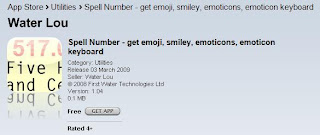
However, if you don't wish to pay for cutesy smileys and are too weak of heart to jailbreak your iPhone, then the Spell Number app is for you!


This nifty little app is actually meant to help people spell out a number (for stuff like writing cheques I guess), but hidden inside is the feature to unlock the Japanese character set, which includes the Emoji keyboard!

Here's how to do it:
  1. First install the Spell Number application from App Store
  2. Run the application on your iPhone
  3. Type in the following magic number: 91929394.59


  4. Exit the Spell Number app
  5. Access your Settings page
  6. Scroll down and select General


  7. Scroll down and select Keyboard


  8. Select International Keyboards


  9. Scroll down until you see the Japanese setting. Select it.


  10. Switch on the Emoji setting. You can also turn on Kana if you want access to the Hiragana/Katakana/Kanji character sets.


  11. And that's it! Emoji is now available. All you need to do to access it is to hit the Globe icon to access the smileys!


  12. You can also safely delete the Spell Number application if you don't intend on actually using it for spelling numbers... The settings have been saved to you phone.

Thursday, September 24, 2009

iPhone Tips: Enabling Push Email with Gmail

Yes! Push email from Gmail is now possible using the iPhone!

And it's super simple to set up too. Heck, you can even do a 3-in-1 OTA sync for your iPhone with Gmail, Gmail Contacts and Google Calendar following the instructions below.

Do note though that this will take up data bandwidth in the background, so if you are using pay-as-you-go data services, you probably want to reconsider activating push email.

  1. Ensure that you are on iPhone OS 3.0 or higher. You can check this by going to Settings -> General -> Version. If you are not on OS 3.0, fire up iTunes and download the latest OS from Apple.
  2. From the home screen, select Settings.
  3. Scroll down and select Mail, Contacts, Calendars.
  4. Select Add Account... .
  5. Select Microsoft Exchange (don't ask me why...).
  6. In the Email field, enter your full Gmail email address (ie. username@gmail.com, not just username).
  7. In the Username field, enter your full Gmail email address again.
  8. In the Password field, enter your Gmail password.
  9. Tap the Next button at the top of the screen.
  10. A new Server field will appear. Enter m.google.com in that field.
  11. Tap the Next button at the top of the screen again.
  12. Ensure that the Mail service is set to On.
  13. You can change the number of Mail Days to Sync to your preference.
  14. You can also select more Mail Folders to Sync other than the Inbox. This is useful if you have set auto-archiving filters on your incoming email on Gmail.
  15. Tap the Done button at the top of the screen.
  16. Tap on the Fetch New Data option and ensure that Push is set to On.
Now, new emails to Gmail should be pushed to your iPhone shortly after it arrives. Excellent!

iPhone Tips: Over-the-air Syncing with Outlook and Google Calendar

I use Outlook a lot to organize my meetings and appointments during the work week. Unfortunately, I am not always at my desk and am too busy to always remember to sync my iPhone or Blackberry to my Outlook using iTunes or the BB Desktop Manager.

That's when I came up with a 3-way syncing system between my Outlook, Google Calendar and my mobile devices, leveraging off Google Sync.

Basically, I use MS Outlook as my main scheduling tool. I use it to create and manage most of my appointments, including meeting requests that I get through email.

I then use Google Sync to synchronize the Outlook events to my default calendar in Google Calendar.

I then configure my iPhone and Blackberry to synchronize its calendars with Google Calendar. Viola! The iPhone and Blackberry calendars are now synchronized over-the-air and I don't need to worry about missing appointments now, especially on weekends when I don't have Outlook in front of me to alert me.

Here are the steps that you need to follow to set up Google Sync and your iPhone. I'll post the Blackberry sync instructions later as it's slightly different.

* Please do note that OTA syncing uses data services and will use data bandwidth in the background. So if you are on a pay-as-you-go data plan, you might want to reconsider using OTA syncing and just rely on the USB way to sync your calendar using iTunes.

SETTING UP GOOGLE SYNC
  1. Download the latest version of Google Calendar Sync for PC from http://www.google.com/sync/pc.html
  2. Install Google Calendar Sync
  3. In the Email field, enter your full Gmail email address (ie. username@gmail.com, not just username).
  4. In the Password field, enter your Gmail password.
  5. Under Sync Options, select 2-way to allow Google Sync to update both Google Calendar and Microsoft Outlook.
  6. In the Sync every field, select a practical sync interval. I set mine to 60 minutes.
  7. Click on the Save button.
  8. Right-click on the Google Calendar Sync icon on your system tray, and select Sync to populate your Google Calendar with the events from your Outlook.
  9. The Google Calendar Sync icon's animation will stop once it has completed syncing.
  10. If you get an error while syncing, it might be because there are conflicting events in your MS Outlook. You can try to resolve these conflicts using Outlook and try resyncing. If you still get the same error, you might need to do what I did - delete all really old events until the error is resolved.

SETTING UP THE IPHONE

  1. Ensure that you are on iPhone OS 3.0 or higher. You can check this by going to Settings -> General -> Version. If you are not on OS 3.0, fire up iTunes and download the latest OS from Apple.
  2. From the home screen, select Settings.
  3. Scroll down and select Mail, Contacts, Calendars.
  4. Select Add Account... .
  5. Select Microsoft Exchange (don't ask me why...).
  6. In the Email field, enter your full Gmail email address (ie. username@gmail.com, not just username).
  7. In the Username field, enter your full Gmail email address again.
  8. In the Password field, enter your Gmail password.
  9. Tap the Next button at the top of the screen.
  10. A new Server field will appear. Enter m.google.com in that field.
  11. Tap the Next button at the top of the screen again.
  12. Ensure that the Calendars service is set to On.
  13. Tap the Done button at the top of the screen.

Wednesday, September 23, 2009

iPhone Tips: Over-the-air Syncing of Contacts, Calendar & Email with Gmail

One of the problems that I had when migrating to the iPhone was how to move across all my contacts from my old Sony Ericsson W880i. I didn't want to let iTunes sync with my Outlook as that is reserved for my work contacts (syncing with my Blackberry). Also, I wanted the convenience of over-the-air syncing of contacts.

What I decided to do was use Google Sync to sync my iPhone with Gmail OTA and make Gmail as my central repository for my contacts. So now, I can keep all my contacts in one place and rest assured that it's always in sync with my phone.

Added bonus is that I can use a proper keyboard and large screen to edit all my contacts and just let it sync with the iPhone later. No more squinting and cursing every time I hit the wrong key on the iPhone's touch screen keypad. =)

If you do intend to do this, please do note that OTA services will require data enabled and chew up data bandwidth in the background, so if you are on a pay-as-you-go data service, you might want to reconsider using OTA and just revert to the good ol' USB cable to sync using iTunes.

Ok, now that we got that disclaimer out of the way, here are the instructions (these instructions will also allow you to sync your calendar with Google Calendar and enable Push mail with Gmail).
  1. Ensure that you are on iPhone OS 3.0 or higher. You can check this by going to Settings -> General -> About -> Version. If you are not on OS 3.0, fire up iTunes and download the latest OS from Apple.
  2. From the home screen, select Settings.
  3. Scroll down and select Mail, Contacts, Calendars.
  4. Select Add Account... .
  5. Select Microsoft Exchange (don't ask me why...).
  6. In the Email field, enter your full Gmail email address (ie. username@gmail.com, not just username).
  7. In the Username field, enter your full Gmail email address again.
  8. In the Password field, enter your Gmail password.
  9. Tap the Next button at the top of the screen.
  10. A new Server field will appear. Enter m.google.com in that field.
  11. Tap the Next button at the top of the screen again.
  12. You can now choose whether to sync your Mail, Contacts and/or Calendars with Google Mail/Calendar.
  13. Ensure that the Contacts service is set to On and tap the Done button at the top of the screen.
  14. You will now be asked what you want to do with the existing contacts that you have on your iPhone. This will determine how your iPhone will sync your contacts with Gmail, so choose carefully!
  15. If you choose Keep on my iPhone, your contacts will be synced according to the All Contacts group in Gmail Contacts.
  16. If you choose to Delete your existing contacts on the iPhone, your contacts will be synched according to the My Contacts group in Gmail Contacts.
  17. I personally prefer to sync with the My Contacts group as Gmail has a tendency to just add anyone and everyone to your All Contacts group and this really messes up the contacts on my phone. The only problem with this is that you need to delete all the existing contacts on your iPhone to do this. Thankfully, I did this earlier on so I didn't have many contacts on the iPhone yet.
That's it! Now, all you need to do is wait for the syncing to complete in the background. You can also kickstart the sync by launching your iPhone Contacts app.

Friday, September 4, 2009

Mafia Wars Strategy and Tips- How to progress without cheating

Other than Bejeweled Blitz (which I have also written a tips and tactics guide for), the Facebook game that I probably wast… I mean, spend a lot of time on is Mafia Wars by Zynga. I found out about the game when it won the 2009 Webby Award for People's Voice Winner.

Shortly after I started playing, I found that there were quite a lot of players out there who used automated bots and scripts to ‘help’ them play, and thus they leveled up insanely quick. This just seemed wrong to me because ultimately, you, the player were not playing the game.

So, that being said, I am definitely not the biggest, baddest and highest ranked player on My Mafia Family list, but I do pride myself that I do not use any bots or scripts to play and have managed to advance to what I think is a respectable level 156 in a span of 3 months since I started playing.

Here’s a list of strategies and tips that I think is useful for players who want to follow the straight and narrow and play the game the way it was meant to be played.

1. Don’t be too hasty to level up!
Take note of how much energy you have left and how much experience you need to advance to the next level. If you level up with more experience than required, you carry that experience over so you will want to maximize how much experience you have before leveling up, and then choose the job with the most experience awarded that you have.

So for example, if your next level up point is at 154057 EXP, try to save up enough energy so that you can get as close to leveling up as possible, say 154056 EXP, and also enough to do the job that provides you the most EXP that you have available, for example Shake Down a City Council Member for 137 EXP so that I can level up and get a head start of EXP in the next level.

If you are going to use fights to get close to the level up point, do so only if you are more than 6 points away from leveling up, as some fights can gain you up to 6 points of experience. I’d recommend fighting until you run out of stamina first, then use your energy points.

CAUTION POINT 1:
Be careful of which job you choose when you are inching closer to the level up point. Sometimes you get ‘lucky’ and get additional experience from a job if you are a Mastermind on someone else’s mafia. This might just tip you over the level up point and ruin this strategy.

CAUTION POINT 2:
If you have a very large and active mafia, be careful if you are planning on maximizing your experience to just 1 EXP under leveling up, as when you are flipping to the job page, you might just be very helpful elsewhere and help your mafia in one of there jobs or fights, thus just getting a measly 1-6 experience points, leveling up and wasting the opportunity to use your own energy to carry over extra experience.

2. Use Energy Packs wisely
Energy Packs are great because it not only refills your Energy, but it also gives you an extra 50% more than what you can normally have.

So be sure not to use Energy Packs if you are within striking range of leveling up. If your max energy level is 350 but you just need 100 EXP to level up, I’d recommend using fights to gain experience while waiting until your energy refills enough to perform Strategy #1 above.

3. Grow your mafia
Having a big mafia is great. They can give you gifts, help you with your wanted list, help you perform jobs to get bonus experience, give you energy packs and help you win fights.

Check out the Mafia Wars forum on Zynga and look for the ADD ME topic to look for other people who want to grow their mafia. Add your own post and also go ahead and add the ones who have listed themselves. However, only do this if you are ok with having these strangers added to your Facebook friends list and having them get some of your personal status updates.

If you are diligent enough, you’ll soon have a sizeable mafia and won’t need to be worried about being bullied too much on the fight list in future (note that only 501 members can help you in a fight). I stopped at about 115 members because my Facebook status feeds were just getting cluttered with status feeds from people I don’t even know other than as Don So-And-So on Mafia Wars, and I had to labor to find feeds from my actual friends.

That being said, I have actually become friends with a couple of the players that I added from the forum. So just try and find a balance that you are happy with.

4. Become a Real-Estate Tycoon
If you are starting up in the game, you’ll want to start buying property so that cash you’ll earn enough cash an hour to not worry about having enough money for weapons, armor and vehicles and just use it because you want those Cash Achievements.

Here are a few property tips:
  • Mafia Mike’s is a good buy in the beginning because it can’t be robbed. You get to buy 1 Mafia Mike’s for every 2 members in your mafia. So buy whatever you are allowed to buy according to your mafia size.
  • Buy in multiples. Every time you increase the stock of something that you own, the price per property goes up slightly. So, if you have enough cash, buy in 10’s, especially for the larger items like the 5-star hotels and casinos.
  • Also, always use the undeveloped space up first before buying more to avoid paying extra for the additional ones.
  • If you can afford it, protect your property and keep it protected. If your property is damaged you’ll earn less for it every hour. So, if you play often enough, keep your properties protected to keep getting full income from them.

5. Get out there and FIGHT!
Ok, now that you have a big mafia and have enough money from jobs and property to buy a good weapon, armor and vehicle for all of them, its time to put them to use! Fighting is a good way to quickly gain experience because Stamina regenerates and is useable much faster than Energy and has a better return ratio as you can gain up to 6 experience for each fight, compared to just about 2 experience for each energy spent.

While I was still working my way up in Mafia Wars: New York, I found Robbing was a quick and easy way to gain experience and also NY Cash compared to just standard fighting, which only allowed a maximum of $65,000 if you won a fight. Successfully robbing Mega-Casinos can earn you 6-digit rewards.

Just look for someone with attackable Mega-Casinos or 5-star Casinos, with a smaller mafia than you to maximize your chances of a successful hit. Of course, Robbing now has become a bit more unpredictable with the introduction of Boosts, but it is still a good way to gain experience and NY Cash simultaneously if you need cash.

However, if NY Cash is not a problem anymore because you are now a Real-Estate mogul yourself and are earning big bucks every hour, you’d probably be like most veterans who pick their fights in Mafia Wars: Cuba as Peso is a heck of a lot harder to earn compared to NY Cash. The thrill of successfully mugging someone for C$65,000 is both evil and quite satisfying.

I don’t really use the Hitlist or the new War feature much because Hits are a less predictable and wars generally take too long for my liking.

Whatever way you choose, make sure you maximize the use of your Stamina points!

6. Help your mafia out
It’s always good to help your mafia out on jobs as you get some experience, cash and sometimes even bonus items out of it. The bigger your mafia, the more changes you get to help out and boost your experience level up faster.

Just be quick though because only 10 people can help out on any job before it expires and I have seen some jobs close as quickly as 2 minutes after it is posted!

7. Use your money before banking it in
As 10% is cut every time you bank in money, be sure to spend it on whatever you want to spend on before banking it in. You don’t want to bank in that $400,000 now and realize later that you need to buy a Town Car minutes later as you’d technically lose $40,000 out of that transaction. So think before you bank your money in.

This is even more important when you are starting off in Cuba as money is scarce in the beginning and you don’t have any business yet until you fight enough people to earn enough to buy a business.

8. Health care is cheaper in New York than Cuba
Once you have access to Cuba, if your health is low, it is best to recharged in NY as by that point in the game you’d have enough money flowing in that you’d not bother much about money in NY anymore, while as I mentioned before, money is harder to come by in Cuba.

So since you don’t need to pay for any airfare between NY and Cuba, its always worth a couple of clicks to head back to NY to get fixed up in the hospital there.

---
Hopefully these tips are useful to those who, like me, want to play the game fairly and earn the Achievement badges on my own merit.

The list is a work in progress and I’ll be adding/modifying the strategy list as Zynga changes the game or I find something better that works.

I’d also like to hear from anyone who has good strategies to share that I can add to this list. Please do leave comment if you do, or if you found this list useful!

Friday, July 24, 2009

Bejeweled Blitz for Facebook - Tips & Tactics

UPDATE: I've written some additional tips for the updated Bejeweled Blitz, however, all tips below are still applicable in the new version, so please do read them as well as the additional tips here.

First things first, let me set some expectations. I am by no means an expert in Bejeweled Blitz for Facebook. My best score so far is 184,000 and I have played enough to consistently score above 75k. I have friends who score higher than I do, but I'm normally 1st or 2nd on my social ranking every week.

As I played and tried to improve my score, I looked around for tips by other players on how to improve (without cheating!). I found a few good tips but they were all scattered about. So I decided to consolidate the tips and tactics, particularly for beginners, to try and get a good score.

So here goes:

1. Get a jumpstart!

Not many people realize that you can actually start moving your first gem even before the voice says GO. This gives you a precious seconds or so to perhaps get your first power gem so you can...

2. Get the 2x multiplier gem early

It really helps if you get the x2 multiplier within the first 10 seconds of the game. This gives a good boost to your score moving forward.

3. Get the multipliers

Multipliers are produced when you get rid of 12 or more gems with 1 swap. So far the easiest way that I have found to do this is to explode a power gem and hope that you get as least 1 cascading match (9 from power gem, 3 from cascade). Be careful though, as you need to wait 10 seconds after a multiplier appears before you can get another one. So pace using your power gems so you don't waste them.

4. Power up!
Since Power Gems are the quickest ways to get multipliers, try and get as many as possible. This is done by matching 4 gems. To me, the problem with matching to get Power Gems, is that it keeps 1 gem in place and that sometimes throws me off on what are the other gems in the surrounding area. So I occasionally need to take a second to re-evaluate once I get a Power Gem, unless I quickly see another match on an area in the board that was not affected by the 4 gem match.

5. Avoid using the Power Gems at the sides

If you use the Power Gems at the absolute sides of the playing area, you are going to lose out on 3 gems when it explodes. So unless you are sure of making 2 cascading matches after to make 12 gems for a multiplier, don't match Power Gems at the sides!

6. Keep up the speed

You get speed bonuses if you make quick matches. The bonus is added to each match that you make until you fail to slow down. The first bonus of 200 if you make 3 matches within 2 seconds. This will then build up to a maximum of 1000. The higher your speed bonus, the longer that you have before you lose the bonus. So what does this all mean? Keep matching like crazy and don't stop!

7. Maximize the Hypercubes

Hypercubes are created when you do a 5 gem match and it destroys all the same coloured gems that it is swapped with. These are harder to get than the Power Gem and pay-off is quite good as you get a base of 400 points per gem. But why settle for a measly 400 points per gem when you can get more with the multipliers! So don't be so quick to do a Hypercube swap. Try to do one when you have at least a multiplier. Obviously be sure to swap with the gem that most fills the playing area to get more bang for your buck.

8. Don't waste the Hypercubes!

Hypercubes don't come easy. So why let them go to waste? Be sure NOT to do the following:
  • Match a Power Gem next to a Hypercube as it will destroy the Hypercube.
  • Swap a Hypercube with a Hypercube (DUH!)

9. Stay on the downlow

If possible, keep matching to the lower portion of the playing area. This minimizes the movement of your mouse, making you a bit faster and also has a higher probability of causing cascading matches, since the gems need to drop and new gems need to come in. The further up you play, the less gem movement there is, thus less probability for cascading matches.

10. Don't be afraid to quit

After a while, you would have gotten the hang of things and know when you are having a crappy game. If things are bad, just bail! Just click on Menu-> Main Menu -> Yes -> Play Now and voila! A fresh start!

Generally, if you haven't hit a 2x multiplier within the first 15 seconds of the game, you aren't going to get a good overall score, so unless you think things are gonna pick up (lots of same coloured gems on screen and you have a 2x and 3x multiplier just waiting to be matched), you might want to consider restarting to save you time.

Weird Tip: Switch off sound

Yeah, I thought this was a stupid idea too. I initially thought that the sound isn't distracting and was good to indicate when time was running out. But then I found that once I turned the sound off, I wasn't so bothered with the time anymore and was able to focus more on the playing area and just getting good matches. This allowed me to more scores above 100K.

Ok, so those are my tips for the game! Hope it benefits other Bejeweled Blitz players on Facebook. If you have found any other useful tips, please share them in the comments section below.

Now I'm off to trying and breach that 200K barrier... Wish me luck and Have fun!

Please leave a comment if you found this guide useful! If you are a Mafia Wars player, you can also check out my Mafia Wars strategy and tips here.